Updated: July 23, 2026
My Quick Answer
Sublimation banding, those horizontal lines across your print, usually comes from wrong printer settings, clogged printhead nozzles, printhead misalignment, or (on Sawgrass) paper feed issues. On converted Epson EcoTank printers, checking Paper Type, Print Quality, and High Speed is a strong first shortcut that often resolves many cases quickly. On Sawgrass SG500/SG1000, the workflow is different: it involves the Sawgrass Print Utility, Paper Feed Adjustment, and Head Flushes. Find your printer type first, then follow the matching fix.
Last Updated: June 2026
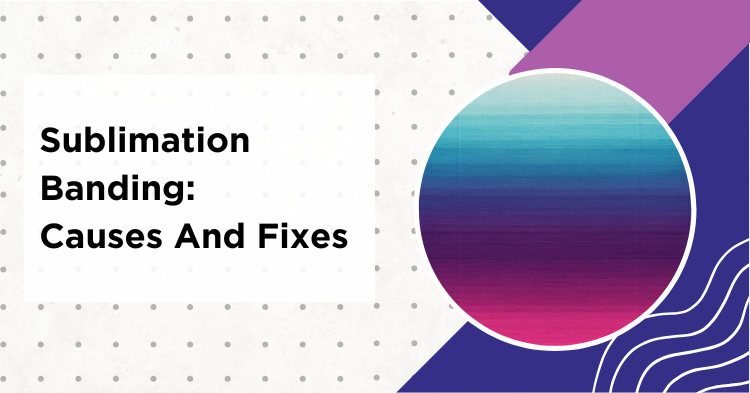
Sublimation banding is one of the most frustrating problems in sublimation printing. You design something beautiful, print it on sublimation paper, press it onto a blank, and then see horizontal lines running through your transfer. Sometimes they are subtle, sometimes they ruin the entire print.
The good news is that banding is usually fixable, and on many setups the fix takes just a few minutes. The mistake most people make is jumping straight to head cleaning cycles (which can use a lot of ink, especially Power Cleaning) when the actual cause is a printer setting or a paper feed adjustment. This guide walks you through diagnosing the line type, then gives you the right fix for your specific printer: Epson EcoTank, Epson F170/F570, or Sawgrass SG500/SG1000.
Watch a nozzle check and print head cleaning on an Epson F570:
Quick Definition
Banding: visible horizontal lines or stripes across a sublimation print, usually caused by a partially clogged printhead, low ink, or a paper-feed problem. It shows up as uneven color where the printer failed to lay ink down evenly.
Which Sublimation Printer Do You Have?
Banding troubleshooting is not universal. The right fix depends heavily on your printer. Find your printer family below and jump to the matching section:
| Printer Family | Examples | Main Fix Areas |
|---|---|---|
| Converted Epson EcoTank | ET-2800, ET-2850, ET-15000 | Paper Type, High Speed OFF, Nozzle Check, Alignment |
| Epson Dedicated Sublimation | F170, F570 | Media Type, Print Quality, printable side, Alignment |
| Sawgrass Sublimation | SG500, SG1000 | Sawgrass Print Utility, Primary Chart, Paper Feed Adjustment, Head Flush |
Types of Lines in Sublimation Prints
Not all lines are the same problem. Different types of lines have different causes and different fixes. Before you start troubleshooting, identify which type you have:
| Line Type | What It Looks Like | Most Likely Cause |
|---|---|---|
| Horizontal banding | Thin horizontal lines evenly spaced across the print, often with faded gaps | Settings, clogged nozzles, or (Sawgrass) paper feed adjustment |
| Vertical roller / pizza wheel marks | Thin vertical lines or smudged streaks running down the page | Wet ink picked up by internal rollers or feed wheels |
| Color-specific missing lines | One color (e.g. magenta) is missing or faded in horizontal bands | Clogged nozzles in that specific color channel |
| Misaligned or offset lines | Colors look shifted or edges have a rainbow fringe effect | Printhead misalignment or bi-directional printing |
What Causes Sublimation Banding? (Full List)
Several factors can cause banding, often in combination. The most commonly reported causes across Epson and Sawgrass setups include:
Printer settings: wrong Paper Type / Media Type for your paper, Print Quality too low, High Speed or Bi-Directional printing on, or (on Sawgrass) not printing via the Sawgrass Print Utility.
Clogged nozzles: partial or full clogs in one or more color channels, often from infrequent printing or dry ambient air.
Printhead misalignment: common after moving the printer, installing new ink, or a paper jam.
Paper feed issues (Sawgrass): when lines appear in all colors and the nozzle check is clean, it’s often a paper feed adjustment problem rather than a clog.
Paper and environment: wrong printable side, damp or curled paper, dust, and ambient humidity outside the recommended range can all contribute.
Low ink and other mechanicals: low ink levels, dirty paper path, or misadjusted edge guides can produce lines that look like banding. For a broader view of common sublimation issues, see our fix sublimation mistakes guide.
Quick EcoTank Diagnosis (Shortcut Workflow)
This is a practical, ink-saving workflow for converted Epson EcoTank crafters. It is not a universal manufacturer procedure. Epson’s official guidance generally starts with a Nozzle Check, but if you already know your printer sits unused often and you haven’t recently changed paper, checking settings first can save ink.
Step 1: Check your printer settings. Open your print dialog and check three things: Is Paper Type set to match your sublimation paper? (For many EcoTank users this is “Premium Presentation Paper Matte”, but always confirm against your paper brand’s instructions.) Is Print Quality set to “High” or “Best”? Is High Speed / Bi-Directional turned OFF? If any of these are wrong, fix them, reprint, and check if the banding is gone.
Step 2: Print a nozzle check. If settings are correct and banding persists, print a nozzle check page (Maintenance → Nozzle Check on most Epson printers). The nozzle check prints a grid of horizontal lines in all four colors. If any lines are broken, missing, or faded, you have a clog in that color channel. If the nozzle check looks perfect, the problem is not a clog.
Step 3: Run printhead alignment. If the nozzle check is clean but you still see offset or misregistered lines, run the printhead alignment function (Maintenance → Printhead Alignment). This recalibrates the printhead position.
My tip: always check settings before running Power Cleaning. Power Cleaning uses a lot of ink. If the problem was a Paper Type setting, you spent ink for nothing.
How to Fix Sublimation Banding on Epson EcoTank
This section covers converted Epson EcoTank printers (ET-2800, ET-2850, ET-15000, and similar models). Epson’s official banding troubleshooting lists nozzle check, head cleaning, turning off high-speed printing, alignment, and paper checks as fixes, which line up with the steps below.
Watch how to clear lines and stripes on an Epson EcoTank:
Fix 1: Printer Settings
Wrong settings are a very common cause of banding on EcoTank sublimation setups. Here is what to check and why:
| Setting | Wrong Value | Correct Value (EcoTank baseline) | Why It Matters |
|---|---|---|---|
| Paper Type | Plain Paper | Premium Presentation Paper Matte (or your paper brand’s recommended setting) | Plain Paper uses less ink; Epson specifies that Paper Type should match the loaded media |
| Print Quality | Draft or Standard | High or Best | Lower quality reduces dot density, which can create a striped look |
| High Speed | ON | OFF | Bi-directional passes can misalign, Epson officially lists turning High Speed off as a banding fix |
After changing these, reprint and check. Save your settings so they don’t reset. For a complete list of sublimation printer settings, see our sublimation printer settings guide.
Fix 2: Clogged Nozzles
If your nozzle check shows broken or missing lines in one or more colors, you have clogged nozzles. This is especially common if the printer has sat unused for several days.
We have a complete guide dedicated to fixing clogs: How to Unclog a Sublimation Printer. The short version for banding:
Moderate clog (many lines missing in one color): Run the built-in Head Cleaning cycle (Maintenance → Head Cleaning). Head Cleaning uses ink. Wait a few minutes, then run a nozzle check. Repeat up to 3 times if needed.
Severe clog (entire color missing): Run the Power Cleaning function (Maintenance → Powerful Cleaning). Power Cleaning uses significantly more ink than regular Head Cleaning and fills the ink pads faster. Epson also notes that ink tanks should be at least about one-third full before running Power Cleaning; running it with low tanks can damage the printer. Wait 6-12 hours before re-running a nozzle check.
Optional community workaround: Some crafters print purge sheets (heavily inked pages) on plain paper to push ink through without running a formal cleaning cycle. This is not an official manufacturer procedure, but it is widely used. Treat it as an alternative before Power Cleaning, not the first-line official method.
If none of the cleanings help, see our full unclog guide for manual soak methods.
When to Stop Cleaning
Epson: If up to 3 Head Cleanings do not clear the nozzle check, Epson generally recommends waiting at least 12 hours before attempting Power Cleaning. Running cleaning cycles back to back without rest can damage the printhead.
Sawgrass: Broader troubleshooting escalates after up to 3 Head Cleanings to Head Flushes (up to 5 Head Flushes). Sawgrass’s standalone Head Clean article notes up to 5 Head Cleanings may be attempted. If the issue remains, check the capping station or contact Sawgrass Support before adding more cleaning cycles.
Fix 3: Printhead Alignment
If your settings are correct and the nozzle check is clean but you still see offset or misregistered lines, your printhead may be misaligned. This is especially common after a new ink fill, a paper jam, or moving the printer.
How to run printhead alignment on Epson EcoTank:
Step 1: On the printer screen, go to Maintenance → Printhead Alignment (or Head Alignment). If your model has no screen (like the ET-2800), access this through the Epson printer utility on your computer.
Step 2: The printer prints alignment test patterns, a series of numbered boxes with different line patterns. For vertical alignment, select the box where the lines look straightest. For horizontal alignment, select the box where lines are most evenly spaced.
Step 3: Input your selections, the printer saves the new alignment, then print a test page.
Alignment usually only needs to be done occasionally, after moving the printer, replacing ink, or when misregistration appears that settings changes do not fix.
Fix 4: Roller Marks (Vertical Streaks on EcoTank)
Vertical lines that run down the page are a different problem from horizontal banding. On EcoTank printers, these are often caused by internal feed rollers picking up wet ink as the paper moves through.
Fixes for EcoTank roller marks:
Try a different sublimation paper. Not all sublimation papers are compatible with all EcoTank models. Some papers absorb ink too slowly, leaving the surface wet when it reaches the rollers. Switching to a faster-drying paper brand often solves this. See our best sublimation papers guide.
Change paper type to Envelope (community workaround). Many EcoTank users report that selecting “Envelope” as Paper Type reduces roller contact with the wet ink. Epson’s own documentation confirms that Envelope / Thick paper settings are appropriate when smearing occurs on thick paper. This is a commonly used community workaround, even if Epson does not explicitly call out Envelope for sublimation paper.
Adjust ink density or drying time. Epson lists Density and Ink Drying Time as official adjustments when smearing happens. If your printer or RIP software exposes these, reduce density by 1-2 points or increase drying time between passes. Test on a spare blank first since reducing density can slightly affect color vibrancy.
My tip: if roller marks only appear with one specific paper brand, paper compatibility is a likely culprit. Switch papers before trying other fixes.
Sawgrass Sublimation Banding Fixes (SG500 / SG1000)
Sawgrass troubleshooting is noticeably different from Epson. The fixes below apply to SG500 and SG1000 models specifically.
Use the Sawgrass Print Utility
Banding on Sawgrass printers often comes from printing through the standard driver instead of the Sawgrass Print Utility (SPU). The SPU applies the correct paper profile, color management, and printer-specific settings. Printing a sublimation job through the generic driver can produce banding, wrong colors, or poor ink coverage. Always use the SPU for sublimation jobs.
Nozzle Check First, Then Primary Chart
Sawgrass’s official workflow for horizontal lines is: run a Nozzle Check first. If the Nozzle Check is perfect but lines appear in specific colors, run the Primary Chart. If lines appear across all colors on a clean nozzle check, it’s usually a Paper Feed Adjustment issue, not a clog.
Paper Feed Adjustment
This is a Sawgrass-specific fix not found on Epson. When lines appear in all colors and your nozzle check is clean, the paper feed distance between print passes needs adjustment. The SPU exposes a Paper Feed Adjustment option. Follow Sawgrass’s step-by-step to dial in the correct value for your paper.
Head Flush vs Head Cleaning
Sawgrass distinguishes Head Cleaning from Head Flush. Head Cleaning is the first step; Head Flush is the more thorough escalation. Sawgrass’s broader troubleshooting typically escalates after up to 3 Head Cleanings to Head Flushes, though Sawgrass’s standalone Head Clean article notes that up to 5 Head Cleanings may be attempted. Check the specific Sawgrass article for your issue to confirm the recommended count.
Pizza Wheel Marks on Sawgrass
Vertical marks on Sawgrass prints are usually called pizza wheel marks, referring to the small feed wheels that can press against wet ink. Sawgrass lists several fixes:
Use a compatible paper profile. Sawgrass includes Type B paper profiles among others. Choosing the right profile in the SPU helps prevent wet ink contact.
Consider polyester substrate profiles. For some jobs these profiles use less ink and reduce wet-ink transfer to the feed wheels.
Clean or remove the Exit Guide / Feed Assist Plate. Sawgrass documents that the Exit Guide can pick up wet ink. It can be cleaned, and for some substrates it can be temporarily removed during printing. Follow the official Sawgrass guide for your specific model.
Room humidity. Sawgrass notes that around 50% relative humidity or below tends to work best; higher humidity can worsen wet-ink and pizza-wheel issues.
De-condensation. Sawgrass includes De-condensation as an official quick step when pizza wheel marks appear, especially after printer downtime or in environments with humidity changes. Run it from the Sawgrass Print Utility before going deeper into cleanings or plate removal.
Print Head Position Adjustment (Vertical Lines / Blurred Colors)
Sawgrass documents Print Head Position Adjustment as an official cause for vertical lines and blurred colors, separate from the printable-side and paper-feed causes above. Run this from the SPU when you see misregistration or vertical misalignment that the paper feed adjustment and nozzle check do not resolve.
Dirty Horizontal Encoder (Single or Double White Vertical Lines)
If you see a single or double thin white vertical line running down the page on a Sawgrass printer, a dirty horizontal encoder is an officially documented cause. Follow Sawgrass’s specific cleaning procedure for the encoder. Do not wipe it with arbitrary cleaners, since the encoder is a precision component.
Paper Feed Belt Cleaning (Periodic)
Sawgrass recommends periodic paper feed belt cleaning as part of preventative maintenance. A dirty belt can cause uneven paper movement through the printer, which can show up as banding or misregistration. Include this in your regular Sawgrass maintenance schedule, not only when problems appear.
Ricoh Sublimation Printer Banding
If you are running a Ricoh-based sublimation printer (including older Sawgrass models built on Ricoh hardware), banding often appears along with broader print quality issues like color shifts, lines, or dropouts. For a detailed breakdown of Ricoh-specific quality problems and fixes, see our Ricoh print quality issues guide.
Epson F170 / F570 Specific Notes
The dedicated Epson F-series sublimation printers share some troubleshooting with EcoTank but have a few differences. For setup, ink and the maintenance tank on this printer, see our Epson F170 owner guide. Epson’s official guidance for the F170 notes that Media Type must match the loaded paper, Print Quality should not be set to a faster setting for best results, and the printable side of the paper must face up. Alignment and Nozzle Check procedures are accessed through the printer menu.
If you are on an F170/F570 and seeing banding, the order is similar to EcoTank: match Media Type correctly, set Print Quality to a higher setting, disable any faster-print mode, run a Nozzle Check, then Alignment if needed.
Paper and Environment Issues (All Printers)
Printing on the wrong side of sublimation paper. Sublimation paper has a coated side (bright white, slightly tacky) and an uncoated side (slightly duller). If you print on the uncoated side, ink does not absorb properly, which can cause banding, smearing, or faded results. Most papers mark the coated side. Check your paper brand’s instructions.
Damp, curled, or old paper. Epson’s own guidance notes that damp or curled paper can cause print quality issues. Store sublimation paper in a sealed bag or container, especially in humid climates. If you suspect moisture, try a fresh sheet from a sealed pack.
Humidity range. Many Epson documents for sublimation-adjacent printers recommend roughly 40-60% relative humidity. Sawgrass notes that around 50% or below tends to work best for wet-ink prevention. Very dry air and direct AC drafts can contribute to nozzle drying; high humidity can worsen wet-ink and roller-mark issues. Both extremes are worth addressing.
Dust and paper path cleanliness. Dust particles can block nozzles or streak the paper surface. Keep your printer covered when not in use. Epson lists cleaning the paper path as a recommended maintenance step.
Low ink and edge guides. Low ink levels or misadjusted paper edge guides can produce lines that look like banding. Check both before running cleaning cycles.
Banding Prevention Checklist
Follow these practices to reduce the chance of banding:
1. Match printer settings to your paper and printer family. For EcoTank: Paper Type set to your paper brand’s recommendation (often Premium Presentation Paper Matte), Quality High, High Speed OFF. For Sawgrass: always use the Sawgrass Print Utility with the correct paper profile.
2. Print regularly. Epson generally recommends turning the printer on at least once every two weeks (some models say printing a few pages once a month). Sawgrass recommends periodic Nozzle Checks. The exact frequency depends on your model, environment, and ink. Frequent, light use tends to prevent drying better than long idle periods.
3. Run a nozzle check regularly. Catches partial clogs before they become full blockages. A nozzle check takes about 30 seconds and uses very little ink.
4. Store sublimation paper properly. Sealed bag or container, away from humidity. Print on the coated side. If you are shopping for new paper, see our best sublimation papers guide.
5. Keep your workspace clean and control humidity. Cover your printer when not in use. Aim for roughly 40-60% RH on Epson setups, around 50% or below on Sawgrass wet-ink prone models. Avoid direct AC drafts on the printer.
Frequently Asked Questions
What causes sublimation banding?
The most common causes are wrong printer settings (Paper Type / Media Type, Print Quality, High Speed), clogged printhead nozzles, printhead misalignment, and (on Sawgrass) paper feed adjustment issues. Paper-related causes like wrong printable side, damp paper, or humidity extremes can also contribute. The right fix depends on your printer family: Epson EcoTank, Epson F170/F570, or Sawgrass SG500/SG1000.
How do I fix horizontal lines in sublimation printing?
Start by identifying your printer family. On Epson EcoTank, check Paper Type (match your paper brand), Quality (High or Best), and High Speed (OFF). If lines persist, run a nozzle check, then printhead alignment. On Sawgrass, run a Nozzle Check first, then Primary Chart if colors are missing, or Paper Feed Adjustment if all colors show lines on a clean nozzle check. Always print via the Sawgrass Print Utility.
Why does my sublimation print have vertical lines?
Vertical lines are usually roller or pizza wheel marks, caused by internal feed components contacting wet ink. On Epson EcoTank, try a faster-drying paper, the Envelope paper type workaround, or reduce density / increase drying time. On Sawgrass, check the paper profile in SPU, consider cleaning or removing the Exit Guide / Feed Assist Plate per Sawgrass documentation, and keep room humidity around 50% or below.
Can wrong side of sublimation paper cause banding?
Yes. Sublimation paper has a coated (bright, slightly tacky) side and an uncoated side. Printing on the uncoated side prevents proper ink absorption and can cause banding, smearing, or faded results. Check your paper brand’s instructions for which side faces up.
Does high humidity or low humidity cause banding?
Both extremes can contribute. Epson documentation for sublimation-adjacent printers recommends roughly 40-60% relative humidity. Very dry air and direct AC drafts can dry nozzles and cause clogs. On Sawgrass, higher humidity can worsen wet-ink and pizza-wheel issues; Sawgrass notes around 50% or below works best. Aim for the middle of each manufacturer’s recommended range.
Should I run a head cleaning to fix banding?
Only after checking settings and running a nozzle check. Head Cleaning uses ink; Power Cleaning uses significantly more. If the nozzle check is clean, cleaning cycles will not fix the problem. Epson generally recommends up to 3 Head Cleanings before escalating, with a 12-hour rest before Power Cleaning. Sawgrass recommends up to 3 Head Cleanings followed by up to 5 Head Flushes before contacting support.
Why do I see banding more after pressing than on the paper?
Sublimation only sublimates the ink that is fully laid down and dried on the paper. Subtle banding on the paper often becomes much more visible after pressing because the heat intensifies the density difference between well-inked and under-inked areas. If the paper looks slightly striped, the pressed result will usually look more noticeable after pressing. For broader color issues that show up after pressing, see our sublimation color problems guide. Fix the banding at the print stage, not at the press.
Why do I get pizza wheel marks on dark sublimation prints?
Dark prints use more ink, which means more wet ink reaches the feed wheels (pizza wheels) before drying. On Sawgrass, switching to a paper profile that uses less ink (for some substrates, a polyester profile), ensuring humidity around 50% or below, and cleaning or temporarily removing the Exit Guide / Feed Assist Plate per Sawgrass documentation are the standard fixes. On Epson EcoTank, try a faster-drying paper, the Envelope paper type workaround, or reduce ink density.


Emily Johnson is a DIY crafter and the founder of SublimationGuides.com. She started out repairing and sewing clothes for her two sons, then discovered sublimation as a way to personalize her makes. Today she researches and shares honest, tested guides on sublimation settings, troubleshooting, and equipment.