Updated: May 11, 2026
This post contains affiliate links. As an Amazon Associate I earn from qualifying purchases at no extra cost to you.
My Quick Answer
Yes, the Epson WorkForce Pro WF-3820 can be used for sublimation, but only after a more involved conversion than an EcoTank. The WF-3820 uses Epson 822/822XL cartridges, so you cannot just refill tanks. You need empty refillable 822XL cartridges with compatible chips, sublimation ink, and you should disable Epson automatic firmware update checks before using third-party cartridges. Firmware updates can make some refillable cartridge chips stop being recognized.
If you do not already own a WF-3820, an EcoTank like the ET-4800 is usually the easier sublimation starter. The WF-3820 conversion makes sense when you already own one or specifically need its office features (ADF, fax, 250-sheet tray).
Last Updated: May 2026
The Epson WorkForce Pro WF-3820 sublimation question comes up because the WF-3820 has the right print head technology (PrecisionCore Heat-Free, which is piezo-based) but the wrong ink delivery system (cartridges instead of EcoTank tanks). This guide explains exactly what conversion looks like, when it makes sense, and when an EcoTank is the better option.
Should You Use the WF-3820 for Sublimation?
Honest answer first: the WF-3820 is not the easiest sublimation printer. It can do sublimation, but it is not designed for it, and the cartridge system creates ongoing maintenance and risk that EcoTank users do not deal with.
Use the WF-3820 for sublimation when:
- You already own one and do not want to buy a new printer.
- You value its office-style hardware features, especially scanning, copying, ADF, fax, and paper handling, but you understand that once converted, the printer should be treated as a dedicated sublimation printer.
- You accept the firmware-update risk and the higher per-print ink cost compared with EcoTank tank refills.
Skip the WF-3820 for sublimation and buy an EcoTank instead when:
- You are buying a printer specifically for sublimation. The ET-4800 is easier to convert and cheaper to run long-term.
- You do not need office features. Hobby crafters rarely use ADF or fax.
- You want a simpler workflow without cartridge chip handling.
The decision usually comes down to one question: do you already have the WF-3820 sitting unused, or are you buying new? Existing owners may save upfront money by converting. New buyers usually save trouble, and often long-term supply cost, by choosing EcoTank.
WF-3820 Specs That Matter for Sublimation
Before conversion, it helps to know which WF-3820 specs actually matter for sublimation. These specs determine what the printer can do once converted.
| Specification | WF-3820 | Why It Matters for Sublimation |
|---|---|---|
| Print Head Technology | PrecisionCore Heat-Free (piezo-based) | Piezo heads can run sublimation ink without thermal damage. This is required for sublimation. |
| Print Resolution | 4800 x 2400 dpi | Sharp enough for shirts, mugs, and small hard blanks. |
| Ink Format | Epson 822 / 822XL cartridges (CMYK) | Cartridge-based, not EcoTank tanks. Conversion is harder. |
| Maximum Paper Size | Legal, up to 8.5 x 14 inches | Same as ET-4800. Covers most shirts and small blanks. No 13 x 19 inch printing. |
| Print Speed | 21 ISO ppm black / 11 ISO ppm color | Fast enough for hobby and small business sublimation. |
| Office Features | 35-page ADF, auto-duplex, fax, 250-sheet tray | Useful if you also do office work, not relevant for sublimation itself. |
The print head is the single most important spec. Because the WF-3820 uses piezo (PrecisionCore Heat-Free), it can physically handle sublimation ink. Thermal print heads (like in cheap Canon or HP inkjets) cannot, which is why most Epson WorkForce models can be converted while many other brands cannot.
The Cartridge Problem: WF-3820 vs EcoTank
The biggest difference between the WF-3820 and an EcoTank is how ink reaches the print head. This single difference creates almost every challenge in WF-3820 sublimation conversion.
Warranty note: Epson designs the WF-3820 for Epson cartridges and Epson ink. Using sublimation ink and refillable cartridges is a third-party conversion and may affect warranty coverage. Most crafters accept this trade-off, but you should know it before opening sealed Epson cartridges.
EcoTank (like ET-4800): Ink lives in built-in tanks. To convert for sublimation, you skip the supplied Epson ink and fill the tanks with sublimation ink directly. One step. No cartridge chips. Much lower cartridge-related firmware risk.
WF-3820: Ink lives in 822/822XL cartridges with smart chips. The chips communicate with the printer to track ink level and detect non-Epson ink. To convert for sublimation, you need empty refillable 822XL cartridges with compatible chips, sublimation ink, and a plan for replacing or resetting chips when the printer reports a cartridge as empty.
This adds three extra layers of complexity:
Chip handling: When a refillable cartridge runs low, the chip says “empty” even after refill. Depending on the cartridge kit, you may need replacement chips, auto-reset chips, or a chipless/firmware workaround. For beginners, replacement-chip kits are usually easier to understand than chipless setups. Check exactly how the specific 822XL kit handles “empty” cartridges before buying.
Firmware-update risk: Epson sometimes updates firmware to block third-party cartridges. After an update, your refillable chips may stop working. You must disable automatic firmware updates and never accept firmware update prompts on the printer.
Higher long-term cost: Sublimation ink in 822XL refillable cartridges costs more per page than ink in EcoTank tanks because cartridges hold less ink. For high-volume sublimation, an EcoTank is cheaper to run.
How to Convert WF-3820 to Sublimation (Step by Step)
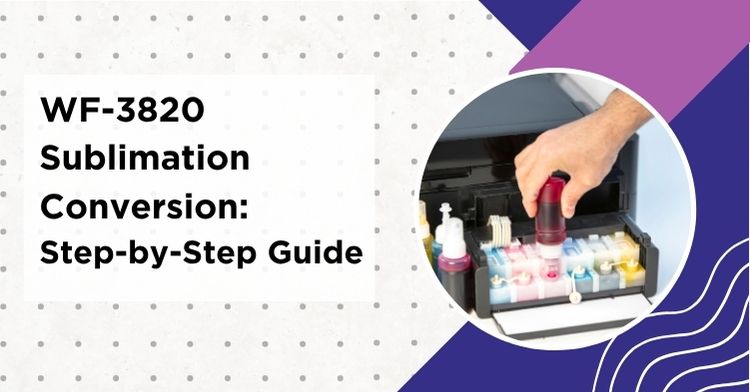
If you already own a WF-3820 and want to convert it, the process takes about 60 minutes if your supplies are ready. Plan for some learning time on top because cartridge swap-and-fill is fiddlier than EcoTank tank-refilling.
Important: If your WF-3820 is brand new and has not yet been initialized, follow Epson initial setup with the included Epson 822 cartridges first. Those starter cartridges contain Epson DURABrite Ultra pigment ink, not sublimation ink, so your first sublimation prints after conversion may need extra purge sheets, nozzle checks, and test blanks until the old ink is cleared from the ink path. This is different from the EcoTank conversion, where you fill with sublimation ink from the start.
Step 1: Gather your supplies before you start. You need empty refillable 822XL cartridges with chips, sublimation ink (4 colors), sublimation paper, an ink injector or syringe set (often included with refillable cartridges), disposable gloves, paper towels, and your ICC profile downloaded if your ink brand provides one.
Step 2: Disable Epson Software Updater auto-checks before using refillable cartridges. On Windows, open the Epson printer software or right-click the Epson printer icon in the taskbar, choose Software Update Settings, and set update checks to Never. On Mac, open EPSON Software Updater under Epson Software and avoid firmware updates. Also decline any firmware update prompts on the printer or computer later. A firmware update can make refillable cartridge chips stop being recognized, and rolling back firmware may be difficult or impossible for many users.
Step 3: Print one nozzle check with the original Epson cartridges. Confirm that all four colors print solid blocks. If anything is missing, run a head clean and re-check. You want a clean baseline before swapping inks.
Step 4: Remove the original Epson cartridges and store them. Save the originals in a sealed bag. If you ever decide to switch back, you may need them for the printer to re-initialize properly.
Step 5: Fill the refillable cartridges with sublimation ink. Open one cartridge at a time, use the included ink injector to fill slowly, and stop at about 90 percent capacity to prevent overflow during use. Match colors carefully (black to black, cyan to cyan, magenta to magenta, yellow to yellow). Cap the cartridge tightly. Wear disposable gloves because sublimation ink stains.
Step 6: Install the refillable cartridges in the printer. Push each cartridge firmly into its slot until the chip clicks into place. The printer should recognize the chips and read them as full. If it does not, remove and reinstall once. KHY-style refillable cartridges rely on compatible chips that the printer should recognize as 822XL cartridges.
Step 7: Run a nozzle check first, then clean only if needed. A nozzle check shows whether the print head is firing all four colors after the cartridge swap. If colors are weak or missing, run a standard head cleaning, wait, and check again. Use a deep or power cleaning only if normal cleaning and rest time do not clear the nozzles. Deep cleaning consumes a lot of ink, so save it for stubborn issues.
Step 8: Install your ICC profile and run a first test print. If your sublimation ink brand provides an ICC profile, install it on Windows by right-clicking the .icc file and choosing Install Profile, or on Mac by copying it to /Library/ColorSync/Profiles/ for all users or ~/Library/ColorSync/Profiles/ for your user account. Then assign it in your design software. Print a small test on sublimation paper, coated side facing up, with mirror enabled. Press at the recipe for your blank type.
Once converted, treat the WF-3820 as a dedicated sublimation printer. Print at least once a week to keep the print head clear of dried sublimation ink. Refill cartridges before they read fully empty so the printer never tries to print on a dry cartridge.
Common WF-3820 Sublimation Conversion Supplies
- KHY 822XL Empty Refillable Sublimation Cartridges with Chip. The cartridges that make the conversion possible. Comes with 4 cartridges, 4 ink injectors, and disposable chips. Designed for WF-3820, WF-4820, WF-4830, WF-4833, WF-4834.
- Hiipoo Sublimation Ink (4-color set). A popular starter ink choice for converted Epson printers. Bottle-style refill works directly with the KHY cartridge injectors.
- Printers Jack Sublimation Ink (alternative 4-color set). Another popular ink choice for Epson sublimation, often available in larger bottle sizes for higher-volume crafters.
- A-SUB Sublimation Paper. A popular starter sublimation paper option for small-format Epson conversions. Works on shirts, mugs, hard blanks.
As an Amazon Associate I earn from qualifying purchases.
Epson WorkForce Pro WF-3820 Sublimation Settings
Once converted, the WF-3820 prints sublimation transfers using settings similar to other Epson sublimation setups. The press settings depend on the substrate, not the printer. These are starter ranges, not universal recipes. Always follow the blank manufacturer instructions first, because mugs, tumblers, coated metal, ceramic tile, and coasters can vary by coating, thickness, press type, and pressure.
| Substrate | Press Temp | Time | Pressure |
|---|---|---|---|
| Polyester Shirt | 385 to 400 F | 45 to 60 sec | Medium |
| Sublimation Mug (11 oz) | 360 F | 3 to 4 min (mug press) | Firm |
| Hard Substrate (MDF, Aluminum) | 385 F | 60 to 90 sec | Medium-Firm |
| Tumbler (20 oz, oven method) | 375 to 385 F | 5 to 8 min | Shrink wrap |
| Ceramic Coaster | 400 F | 60 sec | Medium |
For printer-side settings, use Premium Presentation Paper Matte or the paper type recommended by your sublimation paper brand. Use High or Best Quality, mirror your design horizontally, and disable double color correction if your design software is managing color through the ICC profile. Always start with the blank manufacturer instructions and adjust one variable at a time. The full sublimation temperature chart covers 22+ substrates with starter ranges.
WF-3820 vs ET-4800 vs ET-2800: Decision Tree
The WF-3820 conversion question almost always comes back to a comparison with the EcoTank line. If you have not yet bought a printer, this decision tree narrows the choice fast.
| Spec | WF-3820 | ET-4800 | ET-2800 |
|---|---|---|---|
| Ink System | Cartridges (refillable required) | EcoTank tanks | EcoTank tanks |
| Conversion Difficulty | Hard (cartridge chips, firmware risk) | Easy | Easy |
| Office Features (ADF, fax) | Yes | Yes | No |
| Long-Term Ink Cost | Higher | Lower | Lowest |
| Best Use Case | Already owned; sublimation plus office-style scan/copy/fax features | Sublimation plus all-in-one office | Sublimation only, lowest cost |
| Amazon Link | View WF-3820 | View ET-4800 | View ET-2800 Review |
Quick decision guide:
- Choose the WF-3820 only if you already own one or specifically need its office features for non-sublimation work.
- Choose the ET-4800 if you want sublimation plus an all-in-one machine (scanner, copier, fax, ADF) and want easier conversion than cartridges.
- Choose the ET-2800 if you only need basic sublimation printing and want the lowest starter cost.
Common WF-3820 Sublimation Problems
The WF-3820 shares most sublimation problems with other converted Epson printers (clogging, banding, color shifts) but adds a few cartridge-specific issues. For deeper diagnostic help on any sublimation issue, the sublimation troubleshooting hub covers every common failure with diagnostic tables and step-by-step fixes.
Cartridge not recognized: The most common WF-3820 issue. Either the chip is defective, the cartridge is not seated correctly, or the printer firmware was updated and now blocks third-party chips. Try removing and reinstalling the cartridge. If that fails, swap the chip with a new disposable one (most KHY-style kits include several spares). If a firmware update is the cause, you cannot easily revert without specialized tools.
Banding (horizontal lines): Almost always caused by clogged nozzles or low ink in one channel. Run a nozzle check first. If lines are missing, run a standard head clean, rest the printer, and check again. Use deep or power cleaning only for stubborn clogs because it consumes a lot of ink. The banding fix guide covers the systematic clean-and-rest approach.
Color shifts (greens look blue, blacks look brown): Install the correct ICC profile for your sublimation ink brand. The default Epson driver profile is built for Epson DURABrite Ultra pigment ink and office printing, not sublimation ink, so colors can shift unless your sublimation ink brand provides the right ICC or profile settings. Full setup in the ICC profile guide.
Print head clogging during idle weeks: Sublimation ink dries faster than regular inkjet ink. Print at least once a week, even just a small color test page. If clogs do appear, the 5-tier unclogging system walks through nozzle check, standard clean, power clean, 12-hour rest, and last-resort options.
Pizza wheel marks: The WF-3820 paper feed can leave faint dotted lines on heavy sublimation paper. Reduce paper weight to 105 to 110 gsm if marks appear, or switch to a paper specifically rated for the WorkForce series.
Total Cost of WF-3820 Sublimation Setup
The total cost question matters because the WF-3820 has lower upfront cost than an ET-4800 but higher ongoing cost. The conversion economics depend on your print volume.
Budget for five buckets: printer (you may already own it), refillable 822XL cartridges, sublimation ink, sublimation paper, and a heat press. Disposable gloves, an infrared thermometer, and butcher paper round out the toolkit.
One-time investment: If you already own the WF-3820, your one-time cost is the refillable cartridge kit, sublimation ink, and a heat press. If you are buying the WF-3820 new, add the printer cost. The heat press is the largest variable expense and depends on substrate (mug press, clamshell, oven).
Ongoing supplies: Sublimation ink in 822XL refillable cartridges generally costs more per page than EcoTank tank refills because the cartridge holds less ink and you refill more often. Plan to refill cartridges every few weeks for active hobby use, or every few days for higher-volume sellers.
Hidden costs to plan for: The first batch of prints is often a learning loss. Plan for 5 to 10 imperfect blanks during initial setup, plus 1 to 3 test blanks whenever you switch to a new substrate type. Replacement chips for the cartridges are cheap but add up if you forget to keep spares. A backup printer becomes important if you start selling consistently because a single firmware-update accident can stop production.
Quick cost comparison: if you are buying new and not committed to office features, the ET-4800 is usually cheaper to run over a year because the EcoTank tanks hold far more ink than 822XL cartridges and there is no replacement-chip or cartridge-chip maintenance cost.
Frequently Asked Questions
Is the Epson WF-3820 sublimation ready out of the box?
No. The WF-3820 ships with Epson 822 DURABrite Ultra pigment ink cartridges and is designed for office printing, not sublimation. To use it for sublimation, you need empty refillable 822XL cartridges with chips, sublimation ink, and a process for handling cartridge chips and avoiding firmware updates. Conversion takes about 60 minutes once you have the supplies, but it is more involved than an EcoTank conversion.
What is the best refillable cartridge for WF-3820 sublimation?
Look for empty 822XL refillable cartridges that are explicitly marketed for sublimation and include disposable chips and ink injectors. The KHY (KiteiHiry) 822XL set is one common option, designed for the WF-3820, WF-4820, WF-4830, WF-4833, and WF-4834. Whichever brand you choose, prefer kits that include several spare chips so you can swap chips when one stops resetting cleanly.
Why should I disable firmware updates on the WF-3820?
Epson periodically pushes firmware updates that block recognition of third-party cartridges and chips. After such an update, your refillable sublimation cartridges may stop working entirely, and rolling the firmware back is not always possible. Disable automatic firmware/software update checks through Epson Software Update Settings on Windows or EPSON Software Updater on Mac, and decline firmware update prompts on the printer or computer. This is the single most important habit for keeping a converted WF-3820 running.
Can the WF-3820 print 13 x 19 inch sublimation transfers?
No. The WF-3820 maximum paper size is 8.5 x 14 inches. For 13 x 19 inch sublimation prints, the Epson ET-15000 is the standard recommendation among hobby crafters. The WF-3820 still covers most shirts, mugs, tumblers, and small hard blanks within that size limit.
Is the ET-4800 better than WF-3820 for sublimation?
For most new sublimation buyers, yes. The ET-4800 uses EcoTank tanks instead of cartridges, which makes conversion easier, eliminates the refillable-cartridge chip workflow, and lowers long-term ink cost. The WF-3820 still makes sense if you already own one or specifically need office features for non-sublimation work. If you are starting fresh, the ET-4800 is usually the simpler, cheaper long-term choice.
What temperature and time should I use for sublimation on WF-3820 prints?
Press settings depend on the substrate, not the printer. For most polyester shirts, 385 to 400 F for 45 to 60 seconds with medium pressure works well. Sublimation mugs press at 360 F for 3 to 4 minutes in a mug press. Hard substrates such as metal or ceramic tile often need 385 F for 60 to 90 seconds. Always follow the blank manufacturer instructions first, then adjust one variable at a time.
Can I switch the WF-3820 back to regular printing after conversion?
Switching back is messy and not recommended. You can install original Epson cartridges again, but residual sublimation ink in the print head will mix with the new ink for many print cycles, producing muddy colors. For practical purposes, treat a converted WF-3820 as a dedicated sublimation printer and keep a separate regular inkjet for office work if needed.
Final Thoughts
Final verdict: yes, the Epson WorkForce Pro WF-3820 can be used for sublimation after a careful conversion with empty refillable 822XL cartridges, sublimation ink, and disabled firmware updates.
The honest recommendation is that the WF-3820 makes the most sense when you already own one or genuinely need its office features. If you are buying new and starting fresh, an EcoTank like the ET-4800 is usually easier to convert and cheaper to run long-term. Either path can produce great sublimation transfers once your settings, ICC profile, and pressing recipe are dialed in.


Emily Johnson is a DIY crafter and the founder of SublimationGuides.com. She started out repairing and sewing clothes for her two sons, then discovered sublimation as a way to personalize her makes. Today she researches and shares honest, tested guides on sublimation settings, troubleshooting, and equipment.